Create pages and articles
Here we gather information on how to help create pages and articles. The steps also assume that you are logged in and have started Sitevision, as described in previous steps.
Table of contents
Navigation and placement
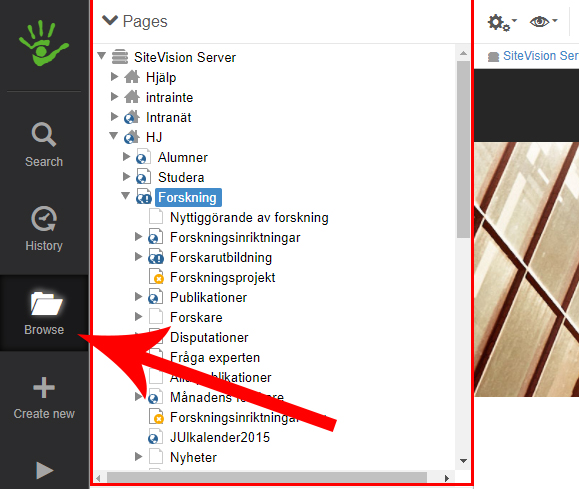
Start by navigating to the page or archive that you wish to create a subpage for. You can easily do this by either navigating to the page before starting Sitevision and then pressing the "pen" icon, alternatively expanding the navigator and navigate to it in the page tree.
Article/news
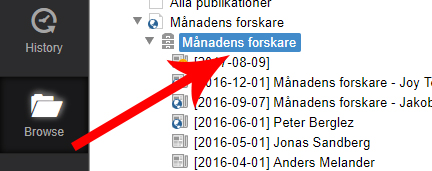
Unlike ordinary pages on the web that can be placed anywhere in the page tree, articles are placed in archives.
Select a template
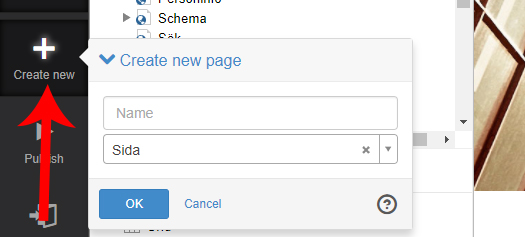
Click on "Create new" in the menu to the right and choose the template and title that the page should have.
There are special templates for the student web. See here.
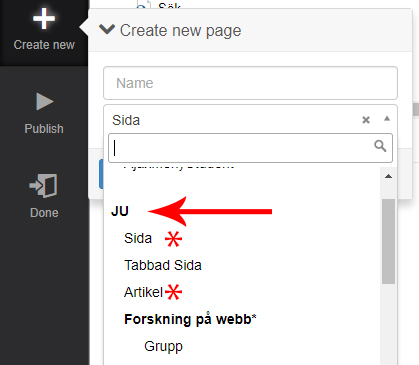
By default, the page template for the external web is selected. You may need to change this if you instead want to create an article or a page on the student web. The heading "JU" in the list indicates which page the template refers to.
Once the template and page name has been selected, click OK and the page will be created and found in the page tree. It will be unpublished and will only be visible in Sitevision right now. Visitors will not be able to view this page until it has been published.